

UGUI / Unity
Unity UGUI Principles (2): Canvas Scaler and UI Scaling
Goal
- Understand the available UI Scale Modes.
- Understand Pixels Per Unit.
- Understand Canvas Scale Factor.
- Understand how Reference Resolution, Screen Size, and Canvas Size relate to one another.
Other articles in this series
- Unity UGUI Principles (1): Canvas Rendering Mode
- Unity UGUI Principles (2): Canvas Scaler and UI Scaling
- Unity UGUI Principles (3): RectTransform
- Unity UGUI Principles (4): EventSystem, Events, and Input
- Unity UGUI Principles (5): Auto Layout
Environment
- Windows 7
- Unity 5.2.4
Canvas Scaler
Canvas Scaler controls the overall size and pixel density of UI elements under a Canvas. Its scale settings affect child UI elements, including font sizes and image bounds.
Size
- Reference Resolution: the default design resolution.
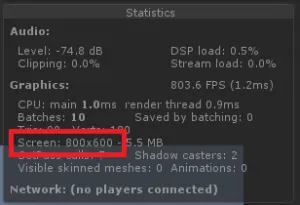
- Screen Size: the current device or game window resolution.
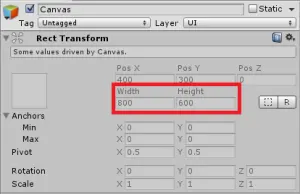
- Canvas Size: the width and height of the Canvas RectTransform.
Scale Factor
Canvas.scaleFactor scales the entire Canvas. It controls how Canvas Size maps to Screen Size. First, look at Unity’s own implementation.
CanvasScaler.cs
protected void SetScaleFactor(float scaleFactor)
{
    if (scaleFactor == m_PrevScaleFactor)
        return;

    m_Canvas.scaleFactor = scaleFactor;
    m_PrevScaleFactor = scaleFactor;
}
The code shows that Canvas Scaler changes the Canvas Scale Factor and scales every UI element under that Canvas.
When Scale Factor is 1, a Screen Size of 800 * 600 produces a Canvas Size of 800 * 600.
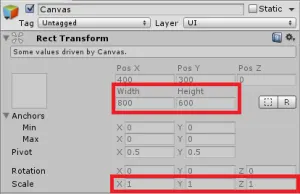
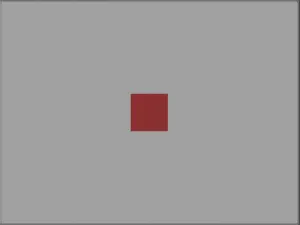
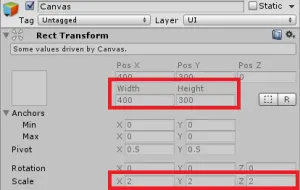
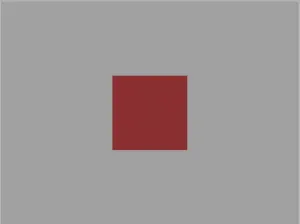
When Scale Factor is 2, the same 800 * 600 screen produces a Canvas Size of 400 * 300. The Canvas is then scaled by 2, so the visual result maps back to the screen size.
UI Scale Mode
Constant Pixel Size
Canvas Size always matches Screen Size. UI elements are scaled directly through Scale Factor.

- Scale Factor: scales every element under this Canvas.
- Reference Pixels Per Unit: maps Sprite pixels to UI units.
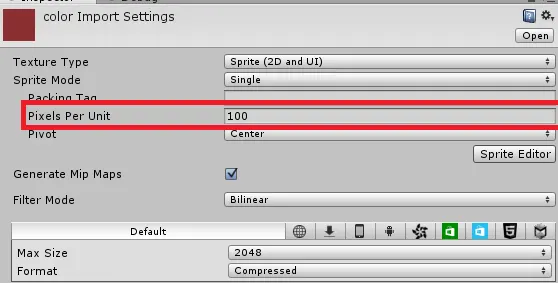
The test image here is a 100 * 100 image.

Suppose the scene contains a 1 * 1 Cube and a Sprite using the test image. Both have Transform Scale set to 1.
When Pixels Per Unit is 100, each Unity unit contains 100 pixels. The Sprite is 100 * 100 pixels, so its world size becomes 100 / 100 * 100 / 100 = 1 * 1 unit.
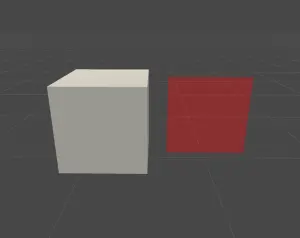
Left: Cube. Right: Sprite.
When Pixels Per Unit is 10, each Unity unit contains 10 pixels. The same Sprite becomes 100 / 10 * 100 / 10 = 10 * 10 units.
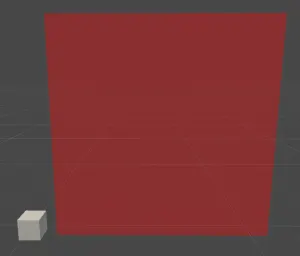
Left: Cube. Right: Sprite.
Conclusion:
- With the default setting, one Unity unit equals 100 pixels.
- From this, we get the formula below.
Sprite size in world coordinates = original image size (Pixels) / Pixels Per Unit
Back to Reference Pixels Per Unit. Unity’s explanation is that if an image file has Pixels Per Unit set, Sprite pixels can be converted into UI pixels through this reference value.
Image.cs
public float pixelsPerUnit
{
    get
    {
        float spritePixelsPerUnit = 100;
        if (sprite)
            spritePixelsPerUnit = sprite.pixelsPerUnit;

        float referencePixelsPerUnit = 100;
        if (canvas)
            referencePixelsPerUnit = canvas.referencePixelsPerUnit;

        return spritePixelsPerUnit / referencePixelsPerUnit;
    }
}
From Unity’s code, Image calculates pixelsPerUnit as spritePixelsPerUnit / referencePixelsPerUnit.
Image.cs
public override void SetNativeSize()
{
    if (overrideSprite != null)
    {
        float w = overrideSprite.rect.width / pixelsPerUnit;
        float h = overrideSprite.rect.height / pixelsPerUnit;
        rectTransform.anchorMax = rectTransform.anchorMin;
        rectTransform.sizeDelta = new Vector2(w, h);
        SetAllDirty();
    }
}
When setting the native size of an Image, Unity divides the Sprite width and height by pixelsPerUnit.
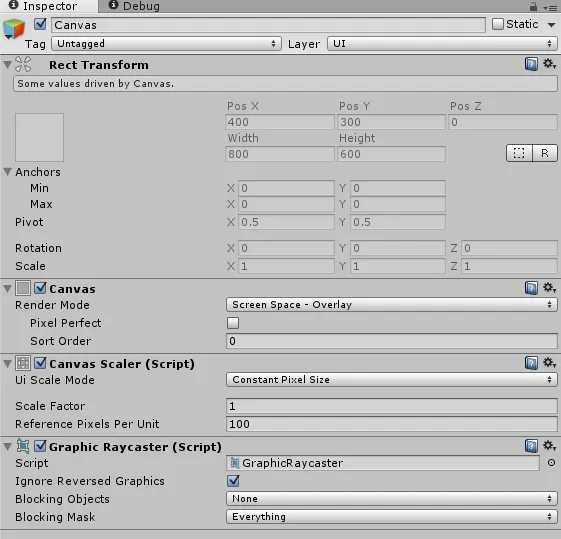
Create an Image under the Canvas, assign the test Sprite, and use the following settings.
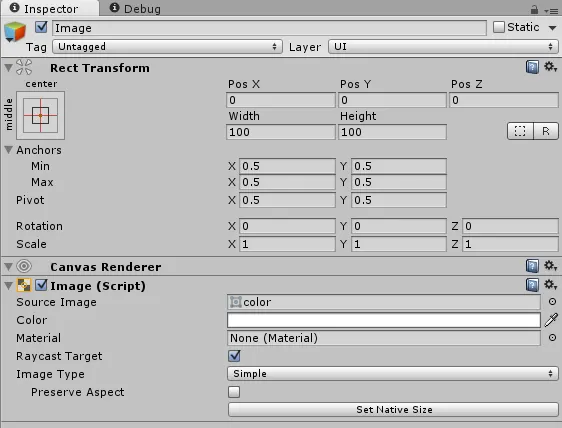
Here are four tests. Change Reference Pixels Per Unit and Pixels Per Unit, then click Set Native Size on the Image component.
| Reference Pixels Per Unit | Pixels Per Unit | Image RectTransform (w * h) |
|---|---|---|
| 100 | 100 | 100 * 100 |
| 200 | 100 | 200 * 200 |
| 100 | 10 | 1000 * 1000 |
| 200 | 10 | 2000 * 2000 |
- The table shows that the default Image size changes with these values.
- From this, we get the formula below.
UI size = original image size (Pixels) / (Pixels Per Unit / Reference Pixels Per Unit)
Scale With Screen Size
This mode scales UI based on the Reference Resolution.
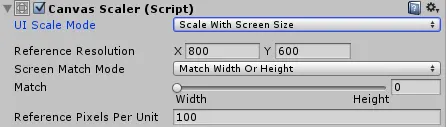
- Reference Resolution: the default design resolution.
- Screen Match Mode: the scaling strategy.
First, look at Unity’s algorithm.
CanvasScaler.cs
Vector2 screenSize = new Vector2(Screen.width, Screen.height);

float scaleFactor = 0;
switch (m_ScreenMatchMode)
{
    case ScreenMatchMode.MatchWidthOrHeight:
    {
        // We take the log of the relative width and height before taking the average.
        // Then we transform it back in the original space.
        // the reason to transform in and out of logarithmic space is to have better behavior.
        // If one axis has twice resolution and the other has half, it should even out if widthOrHeight value is at 0.5.
        // In normal space the average would be (0.5 + 2) / 2 = 1.25
        // In logarithmic space the average is (-1 + 1) / 2 = 0
        float logWidth = Mathf.Log(screenSize.x / m_ReferenceResolution.x, kLogBase);
        float logHeight = Mathf.Log(screenSize.y / m_ReferenceResolution.y, kLogBase);
        float logWeightedAverage = Mathf.Lerp(logWidth, logHeight, m_MatchWidthOrHeight);
        scaleFactor = Mathf.Pow(kLogBase, logWeightedAverage);
        break;
    }
    case ScreenMatchMode.Expand:
    {
        scaleFactor = Mathf.Min(screenSize.x / m_ReferenceResolution.x, screenSize.y / m_ReferenceResolution.y);
        break;
    }
    case ScreenMatchMode.Shrink:
    {
        scaleFactor = Mathf.Max(screenSize.x / m_ReferenceResolution.x, screenSize.y / m_ReferenceResolution.y);
        break;
    }
}
Expand
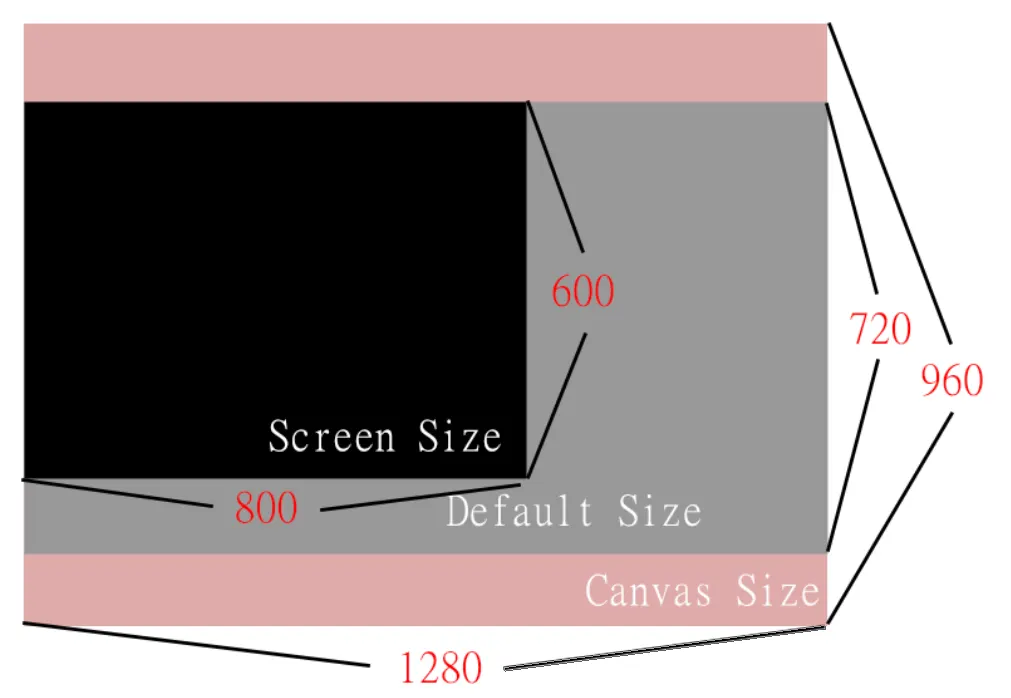
Expand increases either the width or height of Canvas Size so the visible area is at least as large as the Reference Resolution.
scaleFactor = Mathf.Min(screenSize.x / m_ReferenceResolution.x, screenSize.y / m_ReferenceResolution.y);Unity calculates width and height ratios separately, then chooses the smaller value.
For example, Reference Resolution is 1280 * 720 and Screen Size is 800 * 600.
- ScaleFactor Width:
800 / 1280 = 0.625 - ScaleFactor Height:
600 / 720 = 0.83333 - Canvas Size = Screen Size / Scale Factor
- Canvas Width:
800 / 0.625 = 1280 - Canvas Height:
600 / 0.625 = 960
Canvas Size becomes 1280 * 960. The height expands from 720 to 960, which keeps all elements visible.
Shrink
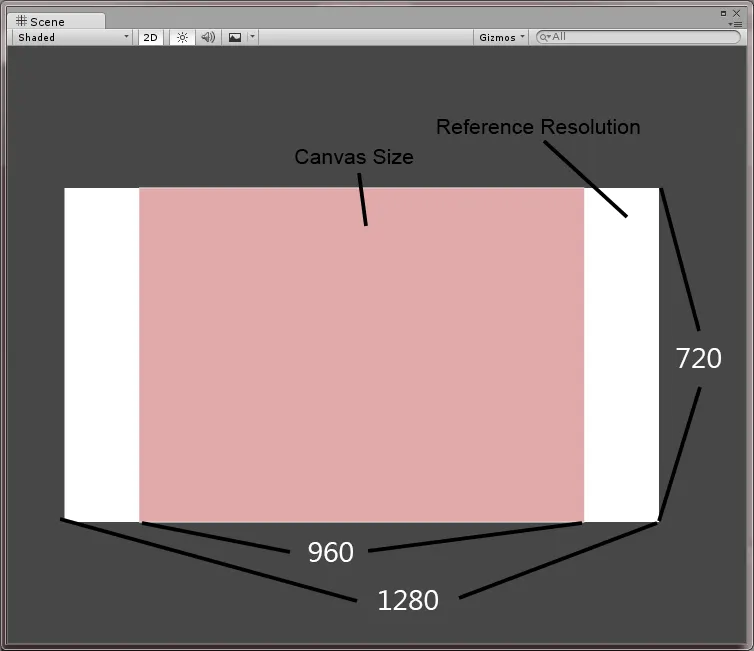
Shrink reduces either the width or height of Canvas Size so it does not exceed the Reference Resolution.
scaleFactor = Mathf.Max(screenSize.x / m_ReferenceResolution.x, screenSize.y / m_ReferenceResolution.y);Using the same example, Unity chooses the larger ratio.
- Reference Resolution:
1280 * 720 - Screen Size:
800 * 600 - ScaleFactor Width:
800 / 1280 = 0.625 - ScaleFactor Height:
600 / 720 = 0.83333 - Canvas Width:
800 / 0.83333 = 960 - Canvas Height:
600 / 0.83333 = 720
Canvas Size becomes 960 * 720. The width shrinks from 1280 to 960.
Match Width or Height
This mode blends scaling between width and height.
float logWidth = Mathf.Log(screenSize.x / m_ReferenceResolution.x, kLogBase);
float logHeight = Mathf.Log(screenSize.y / m_ReferenceResolution.y, kLogBase);
float logWeightedAverage = Mathf.Lerp(logWidth, logHeight, m_MatchWidthOrHeight);
scaleFactor = Mathf.Pow(kLogBase, logWeightedAverage);
Unity takes the logarithm of the width and height scale factors before blending them. Why not just blend width and height directly? Compare the results.
Suppose Reference Resolution is 400 * 300 and Screen Size is 200 * 600. Width is half of the reference, while height is double.
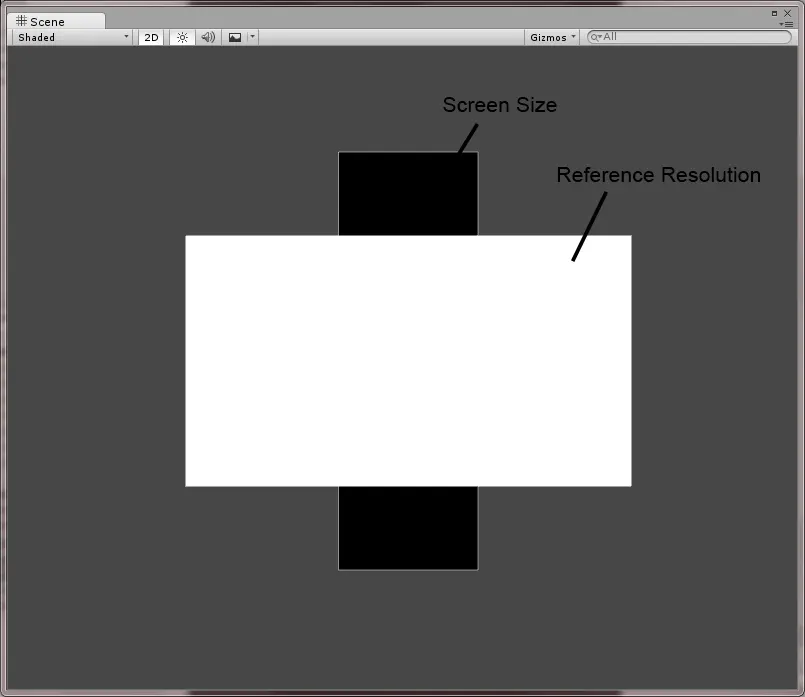
When Match is 0.5, the expected ScaleFactor is 1.
- ScaleFactor Width:
200 / 400 = 0.5 - ScaleFactor Height:
600 / 300 = 2
Linear blend:
ScaleFactor = Match * ScaleFactor Width + Match * ScaleFactorHeight
ScaleFactor = 0.5 * 0.5 + 0.5 * 2 = 1.25
Logarithmic blend:
logWidth: log2(0.5) = -1
logHeight: log2(2) = 1
logWeightedAverage: 0
ScaleFactor: 20 = 1
The linear blend gives 1.25; the logarithmic blend gives 1. The logarithmic approach better balances opposite scaling directions.
Constant Physical Size
This mode scales UI through the hardware device DPI.
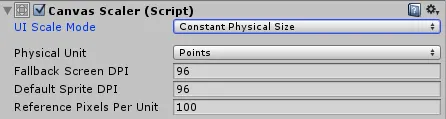
- Physical Unit: the unit type used for scaling.
- Fallback Screen DPI: backup DPI used when the device DPI cannot be detected.
- Default Sprite DPI: default image DPI.
| Unit type | Unit | Relation to 1 inch |
|---|---|---|
| Centimeters | cm | 2.54 |
| Millimeters | mm | 25.4 |
| Inches | in | 1 |
| Points | point | 72 |
| Picas | pica | 6 |
float currentDpi = Screen.dpi;
float dpi = (currentDpi == 0 ? m_FallbackScreenDPI : currentDpi);
float targetDPI = 1;
switch (m_PhysicalUnit)
{
    case Unit.Centimeters: targetDPI = 2.54f; break;
    case Unit.Millimeters: targetDPI = 25.4f; break;
    case Unit.Inches:      targetDPI =     1; break;
    case Unit.Points:      targetDPI =    72; break;
    case Unit.Picas:       targetDPI =     6; break;
}

SetScaleFactor(dpi / targetDPI);
SetReferencePixelsPerUnit(m_ReferencePixelsPerUnit * targetDPI / m_DefaultSpriteDPI);
Conclusion:
- ScaleFactor is the ratio between the current hardware DPI and the target unit.
- ReferencePixelsPerUnit must be recalculated from the current DPI, then passed to Canvas. The formulas are below.
New Reference Pixels Per Unit = Reference Pixels Per Unit * Physical Unit / Default Sprite DPI
UI size = original image size (Pixels) / (Pixels Per Unit / new Reference Pixels Per Unit)
References
Attribution
Please credit ARKAI Studio and link back to this article when quoting or reposting.