
UGUI / Unity
Unity UGUI Principles (4): EventSystem, Events, and Input
Goal
- EventSystem
- Input Modules
- Graphic Raycaster
- Physics Raycaster and Physics 2D Raycaster
Other articles in this series
- Unity UGUI Principles (1): Canvas Rendering Mode
- Unity UGUI Principles (2): Canvas Scaler and UI Scaling
- Unity UGUI Principles (3): RectTransform
- Unity UGUI Principles (4): EventSystem, Events, and Input
- Unity UGUI Principles (5): Auto Layout
Environment
- Windows 7
- Unity 5.2.4
Event System
When you create UI, Unity automatically creates an EventSystem object. It receives mouse, touch, and keyboard input, then dispatches events to the target objects. The default object contains EventSystem, Standalone Input Module, and Touch Input Module.
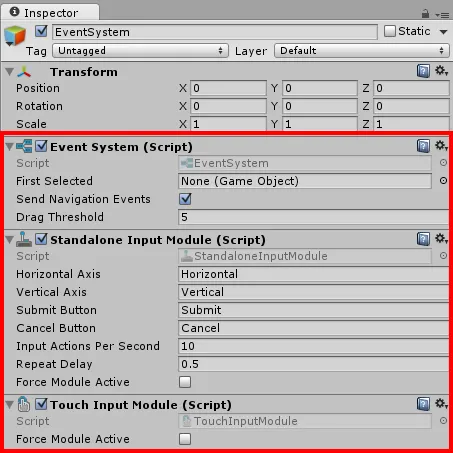
Event System Manager
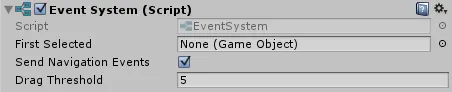
EventSystem coordinates input modules and the currently selected object. On every Update, it receives input module calls and decides which module should process the current input.
Event System Info
After pressing Play, select the EventSystem object. The Inspector shows the selected object, pointer position, event camera, and related event state.
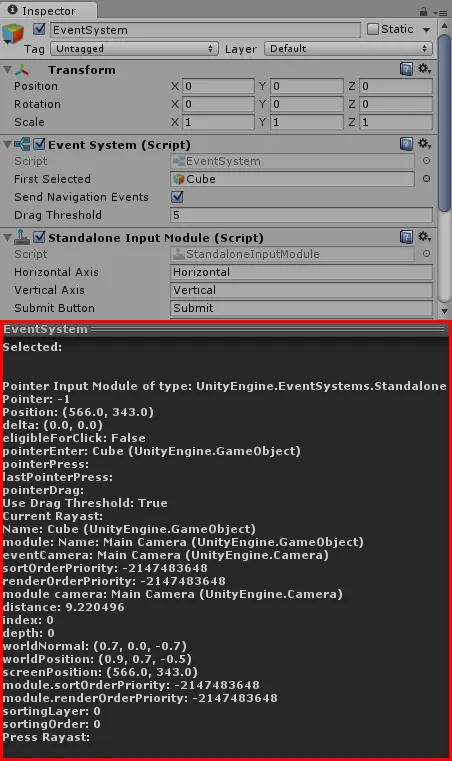
First Selected
The object selected when execution starts. For example, if this points to an InputField, the cursor focuses that InputField after Play starts.
Send Navigation Events
Controls whether UI navigation is enabled. Navigation uses keyboard directions plus Cancel (Esc) and Submit (Enter). If a screen has several menu buttons, Navigation Options can explicitly define which object should be selected when the player presses each direction.
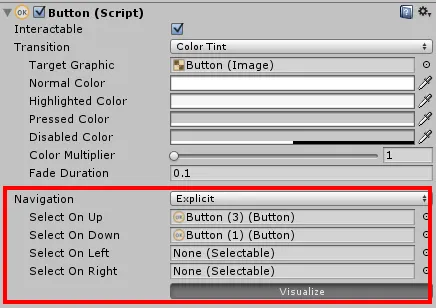
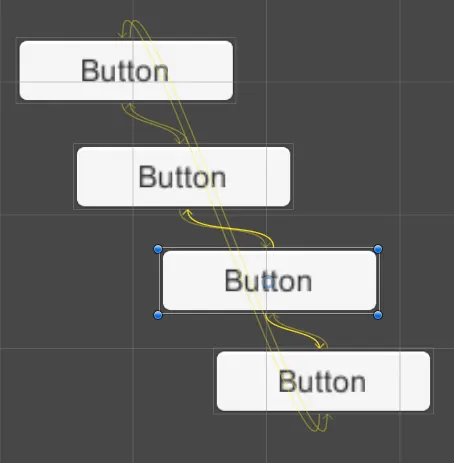
Visualize draws yellow lines showing the configured navigation links.
Drag Threshold
Drag event sensitivity. Lower values make drag detection more sensitive.
Standalone Input Module
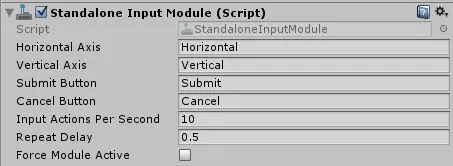
Standalone Input Module handles desktop input, mainly mouse and keyboard. It uses Raycasters in the Scene to determine which element has been clicked, then dispatches the corresponding event.
Horizontal Axis
Represents the Horizontal Axis configured in Input Manager. Vertical Axis, Submit Button, and Cancel Button follow the same idea.
Input Actions Per Second
Maximum number of button and mouse input actions per second.
Repeat Delay
Delay before repeated input begins.
Complete event execution process
Keyboard input:
- Move Event: reads axis input for left, right, up, and down through Input Manager, then sends it to the selected object.
- Submit and Cancel Button: when an object is pressed, Input Manager checks Submit and Cancel input and passes those events to the selected object.
Mouse input:
- New press:
- Send PointerEnter.
- Send PointerPress.
- Store drag-related state.
- Send BeginDrag.
- Set the pressed object as the selected object in EventSystem.
- Held press / drag:
- Process movement.
- Send Drag.
- Process PointerEnter and PointerExit when dragging across objects.
- Release:
- Send PointerUp.
- If the mouse is released on the pressed object, send PointerClick.
- If drag state exists, send Drop.
- Send EndDrag.
- Mouse wheel:
- Send Scroll.
Touch Input Module

Touch Input Module is mainly used on mobile devices. It responds to touch and drag input, then uses Raycasters in the Scene to determine the target element and dispatch events. Its process is similar to mouse input in Standalone Input Module; treat a mouse click as a touch for the mental model.
Event System trigger process
- User input: mouse, touch, or keyboard.
- EventSystem decides whether Standalone Input Module or Touch Input Module should handle the input.
- The selected Input Module uses Raycasters in the Scene to calculate which element was hit.
- EventSystem sends the event.
Graphic Raycaster
Component path: Component -> Event -> Graphic Raycaster.
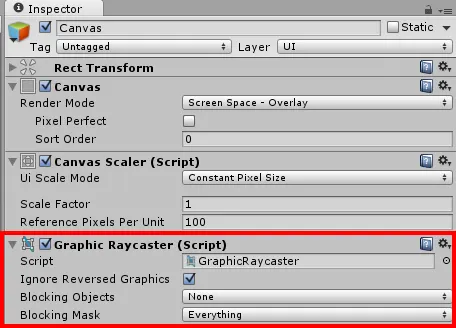
Graphic Raycaster observes graphics under a Canvas and checks whether the pointer hits them. A raycast projects an invisible line from a position in a direction, then checks what it intersects. Unity already has a raycasting explanation; here it is used to detect UI hits.
Ignore Reversed Graphics
Controls whether raycasts ignore graphics facing away from the screen. For example, if a Graphic is rotated 180 degrees on the Y-axis and its back faces the screen, checking this option makes the raycast ignore it.
Blocked Objects and Blocking Mask
These settings matter mainly when Canvas Render Mode uses World Space or Screen Space - Camera. A 3D or 2D object in front of the UI can block the ray before it reaches UI graphics.
- Blocked Objects: object types that can block the ray.
- Blocking Mask: layers that can block the ray.
For example, if a Button overlaps a Cube and no blocking is configured, clicking the overlap still triggers the Button.


If the Cube’s Layer is changed to Test01, Blocked Objects is set to Three D, and Blocking Mask only includes Test01, the Cube blocks the ray. The Button no longer receives the event.
Physics Raycaster (Physics Raycaster)
Component path: Component -> Event -> Physics Raycaster.
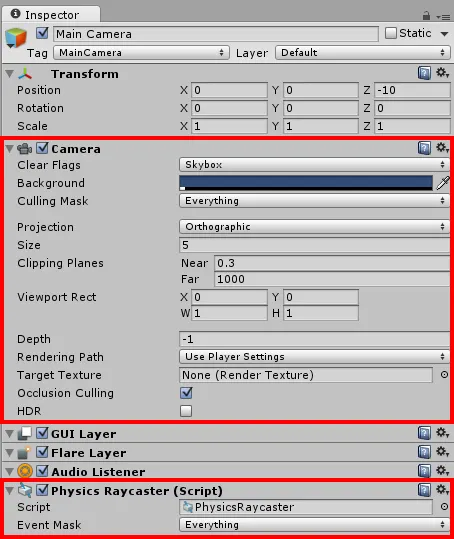
Physics Raycaster uses a Camera to detect 3D GameObjects in the Scene. The target must have a Collider component. Objects that implement Event Interfaces can then receive event messages, such as click or drag. See Unity’s supported events for the full list.
Example setup:
- Create an EventSystem:
GameObject -> UI -> EventSystem. - Add a Physics Raycaster component to the Camera.
- Implement the Event Interface. There are two approaches: implement the interface directly in a script, or use Event Trigger Component.
First approach: create a script that directly implements the interface.
EventTest.cs
using UnityEngine;
using UnityEngine.EventSystems;

public class EventTest : MonoBehaviour, IPointerDownHandler
{
    public void OnPointerDown(PointerEventData eventData)
    {
        print(gameObject.name);
    }
}
Line 2: import the UnityEngine.EventSystems namespace.
Line 4: implement an Event Interface. This example uses IPointerDownHandler for click events. See Unity’s supported events.
Lines 6-8: implement the handler and receive PointerEventData.
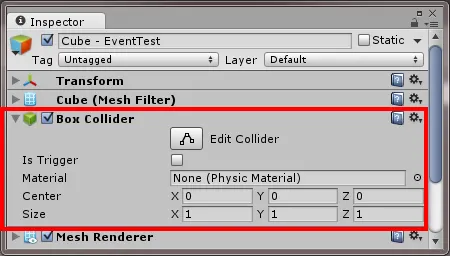
Create a 3D object, named Cube here, and add a BoxCollider component.
Add the script to the Cube. The Inspector shows the events intercepted by the component.
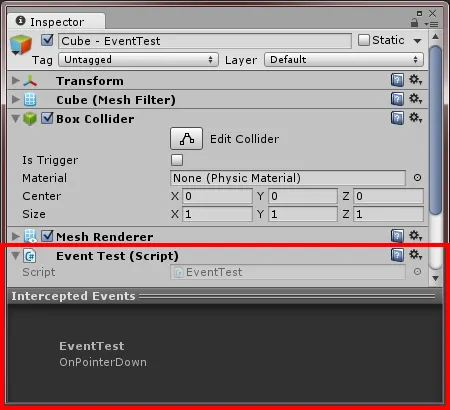
Clicking the Cube now calls OnPointerDown and passes in event data.
Second approach: use Event Trigger Component.
Create a script with methods that can receive Event Trigger notifications.
EventTriggerTest.cs
using UnityEngine;
using UnityEngine.EventSystems;

public class EventTriggerTest : MonoBehaviour
{
    // Pass event information through BaseEventData.
    public void OnPointerDown(BaseEventData eventData)
    {
        print("OnPointerDown--BaseEventData");
    }

    // Invoke without parameters.
    public void OnPointerDown()
    {
        print("OnPointerDown--non");
    }

    // Pass an int parameter.
    public void OnPointerDown(int i)
    {
        print("OnPointerDown--int");
    }
}
Line 2: import the UnityEngine.EventSystems namespace.
Lines 6-18: define three method signatures that can be called from Event Trigger.
Create a 3D object, named Cube here, and add a BoxCollider component.
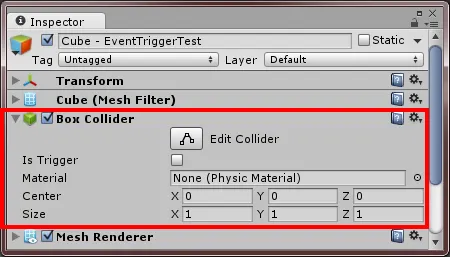
Add the script to the Cube, then add an Event Trigger component. Event Trigger receives events from EventSystem and calls configured methods.
Component path: Component -> Event -> Event Trigger.
Click Add New Event Type and choose the event type. This example uses PointerDown.
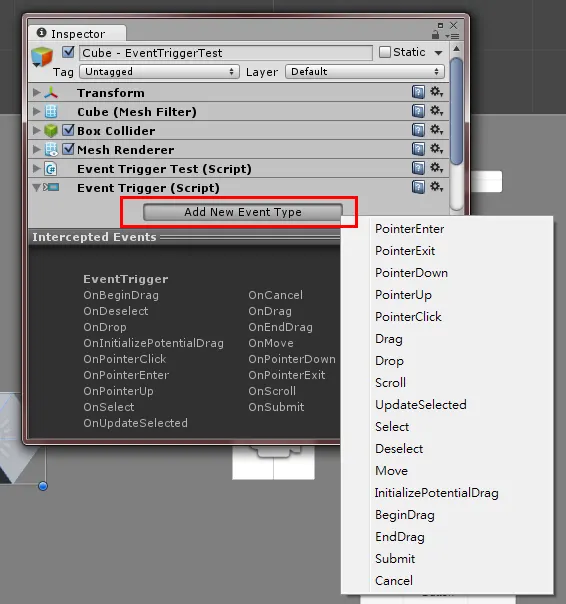
Unity then adds a UnityEvent entry. UnityEvents let you configure, through the editor, which methods or properties should be called when an event fires.
Talk Nonsense and Write Whatever You Want: UnityEngine.Events
After clicking the + button, drag in the Scene GameObject that should receive the notification. UnityEvent lists public methods and properties on that GameObject, so you can assign notification methods or preconfigured property changes.
Drag the GameObject into the Cube Event Trigger and assign the three script methods.
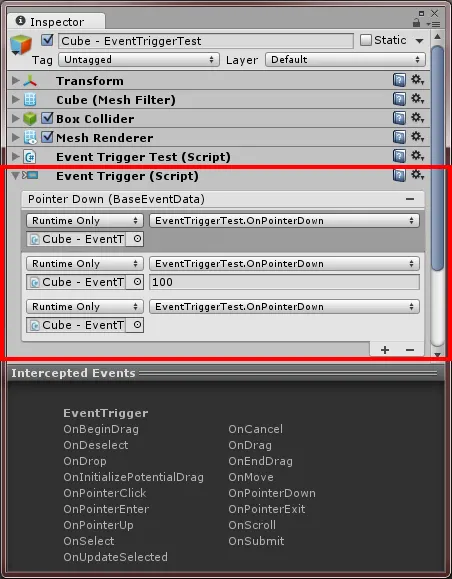
Clicking the Cube now triggers PointerDown and calls the three configured methods.
Implementation notes:
- The Scene needs an EventSystem GameObject.
- The Camera needs a Physics Raycaster component.
- The 3D GameObject needs a Collider component.
- You can either implement Event Interfaces directly in a script or configure them through Event Trigger. Event Trigger is more flexible when designers need to assign notification methods or property changes in the editor.
Physics 2D Raycaster
Component path: Component -> Event -> Physics 2D Raycaster.
Physics 2D Raycaster works like Physics Raycaster, but it detects 2D GameObjects. The target object must have a Collider2D component.
Postscript
Once you understand how input modules and raycasters work together, the EventSystem becomes much less mysterious. The same event flow can be applied to UI, 3D objects, and 2D objects, which makes interaction code cleaner and faster to build.
References
- Unity - Manual: Event System
- Unity - Manual: UnityEvents
- Unity - Raycasting
- Talk Nonsense and Write Whatever You Want: UnityEngine.Events
Attribution
Please credit ARKAI Studio and link back to this article when quoting or reposting.