

UGUI / Unity
Unity UGUI Principles (1): Canvas Rendering Mode
Goal
- Understand the different UI Render Modes.
Other articles in this series
- Unity UGUI Principles (1): Canvas Rendering Mode
- Unity UGUI Principles (2): Canvas Scaler and UI Scaling
- Unity UGUI Principles (3): RectTransform
- Unity UGUI Principles (4): EventSystem, Events, and Input
- Unity UGUI Principles (5): Auto Layout
Environment
- Windows 7
- Unity 5.2.4
Canvas
The Canvas component defines the space where Unity lays out and renders UI. Every UI element must live under a Canvas. In plain terms, Canvas is the root renderer for UGUI.
Render Mode
Unity provides three UI render modes:
- Screen Space - Overlay
- Screen Space - Camera
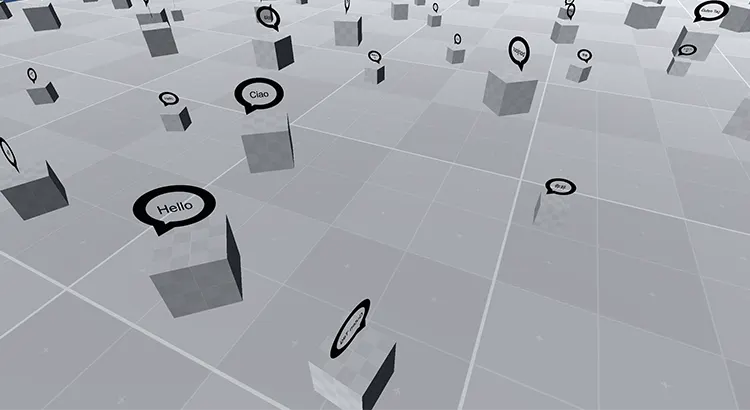
- World Space
Screen Space - Overlay

- Pixel Perfect: Makes images sharper, but adds performance cost. Heavy UI animation may become less smooth.
- Sort Order: Controls draw order. Higher values render in front.
Screen Space - Camera
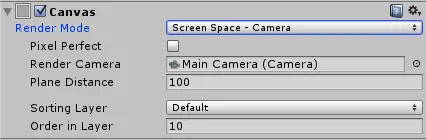
- Render Camera: The Camera used for UI rendering.
- Plane Distance: The distance between the UI plane and the Camera.
- Sorting Layer: The Canvas sorting layer, configured under
Edit -> Project Settings -> Tags and Layers -> Sorting Layers. - Order in Layer: The order inside the selected sorting layer. Higher values render in front.
World Space
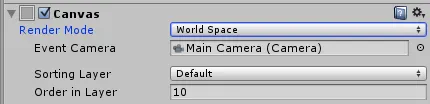
- Event Camera: The Camera that handles UI events such as click and drag. Only the assigned Camera can trigger those events.
References
Attribution
Please credit ARKAI Studio and link back to this article when quoting or reposting.