

Fast / Unity
Rapid Development Tips (2): Editing Multiple Objects Efficiently

In the middle and late stages of development, scenes and UI hierarchies accumulate a lot of objects. If you need to change button events, hierarchy structure, component settings, or added components across many objects, doing it manually is miserable and error-prone. Editor scripts can apply those changes consistently.
Other articles in this series
- Rapid Development Tips (1): Automated Script Generation
- Rapid Development Tips (2): Editing Multiple Objects Efficiently
Environment
- Windows 7
- Unity 5.2.4
How to get objects in Scene?
- Use Selection to get selected objects.
- Use GameObject.FindXXX methods to search objects.
- Start from a specific object, then traverse its children and apply filtering rules.
Implement it
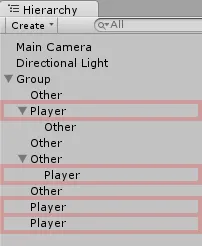
Requirement, simplified for the example:
- Find the child object named
Player. - Set the Player’s Collider
enabledvalue tofalse. - Add a child object under Player.
- Name the new child object
Player Child.
Start with this hierarchy:
Implement an editor script.
Method A: use Selection
ModifyBySelect.cs
using UnityEngine;
using UnityEditor;

public class ModifyBySelect
{
    [MenuItem("Modify/ModifyBySelect")]
    public static void BySelect()
    {
        if (Selection.activeGameObject != null)
            Modify(Selection.activeGameObject.transform);
    }

    static void Modify(Transform parent)
    {
        Transform trans = null;

        for (int i = 0; i < parent.childCount; i++)
        {
            trans = parent.GetChild(i);

            if (trans.childCount > 0)
                Modify(trans);


            if (trans.name == "Player")
            {
                trans.GetComponent<BoxCollider>().enabled = false;

                GameObject go = new GameObject("Player Child");
                go.transform.SetParent(trans);

                Debug.Log(trans);
            }
        }
    }
}
Line 6: Add a Unity menu item.
Line 10: Get the selected object in the current Scene.
Line 19: Iterate child objects.
Lines 21-22: If the child has children, recurse.
Line 25: Check the GameObject name.
Line 27: Disable BoxCollider.
Lines 29-30: Create the child object and set its parent.
Method B: use GameObject.FindXXX
ModifyByFind.cs
using UnityEngine;
using UnityEditor;

public class ModifyByFind
{
    [MenuItem("Modify/ModifyByFind")]
    public static void ByFind()
    {
        Modify(GameObject.FindObjectsOfType<Transform>());
    }

    static void Modify(Transform[] trans)
    {
        for (int i = 0; i < trans.Length; i++)
        {
            if (trans[i].name == "Player")
            {
                trans[i].GetComponent<BoxCollider>().enabled = false;

                GameObject go = new GameObject("Player Child");
                go.transform.SetParent(trans[i]);

                Debug.Log(trans[i]);
            }
        }

    }
}
Line 6: Add a Unity menu item.
Line 9: Find all Transform objects in the Scene.
Line 16: Check the GameObject name.
Line 18: Disable BoxCollider.
Lines 20-21: Create the child object and set its parent.
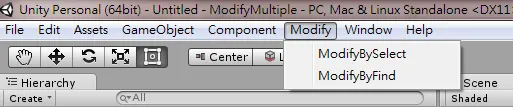
Run the menu item.
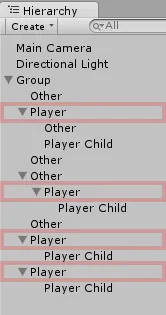
Result:
Postscript
Editor scripts let us modify many objects without hand-selecting and hand-editing each one. For repeated project-specific work, this can grow into dedicated EditorWindow tools.
References
- Unity - Scripting API: GameObject
- Unity - Scripting API: Selection
- Unity - Scripting API: EditorWindow
Attribution
Please credit ARKAI Studio and link back to this article when quoting or reposting.