

Fast / Unity
Rapid Development Tips (1): Automated Script Generation

Once a project has stable development conventions, some code becomes repetitive with only small differences. Writing that by hand every time is boring and inefficient. A small script generator can produce those files automatically and let the team focus on the parts that actually need thought.
Other articles in this series
- Rapid Development Tips (1): Automated Script Generation
- Rapid Development Tips (2): Editing Multiple Objects Efficiently
Environment
- Windows 7
- Unity 5.2.4
Implementation principle
- Create a plain-text template and mark replaceable keys inside it.
TableClass.txt
using UnityEngine;
using System.Collections;

[System.Serializable]
public class $ClassName
{
$MemberFields
}- Replace those keys with generated content and write the output file.
Implementation
First create folders for the generator.
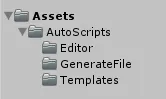
Editor: generator control script.GenerateFile: generated scripts.Templates: plain-text templates.
Create a plain-text template named TableClass.txt and place it in the Templates folder.
TableClass.txt
using UnityEngine;
using System.Collections;

[System.Serializable]
public class $ClassName
{
$MemberFields
}
Create the control script, AutoGenerate.cs, and place it in the Editor folder.
AutoGenerate.cs
using UnityEngine;
using System.Collections;
using System.IO;
using UnityEditor;
using System.Text;

public class AutoGenerate
{
    static string[] NAME = new string[] { "PlayerData", "EnemyData", "FriendData" };

    [MenuItem("AutoGenerate/Generate")]
    public static void Generate()
    {
        for (int i = 0; i < NAME.Length; i++)
            Generate(NAME[i]);
    }

    static void Generate(string name)
    {
        TextAsset textAsset = AssetDatabase.LoadAssetAtPath<TextAsset>("Assets/AutoScripts/Templates/TableClass.txt");
        string template = textAsset.ToString();


        StringBuilder sb = new StringBuilder();
        sb.Append("public int hp { get; set; }" + "\n");
        sb.Append("public int mp { get; set; }" + "\n");
        sb.Append("public int attack { get; set; }");

        template = template.Replace("$ClassName", name);
        template = template.Replace("$MemberFields", sb.ToString());

        using (var writer = new StreamWriter("Assets/AutoScripts/GenerateFile/" + name + ".cs"))
        {
            writer.Write(template);
            writer.Close();
        }

        AssetDatabase.Refresh();
    }
}
Line 9: Declare the class names to generate.
Line 11: Add a Unity menu item.
Lines 12-16: Call the generation method.
Line 20: Read the template.
Lines 24-27: Generate the script content. This example uses the same fields for teaching, but real projects can generate different content based on project needs.
Lines 29-30: Replace keys in the template.
Lines 32-36: Write the generated file.
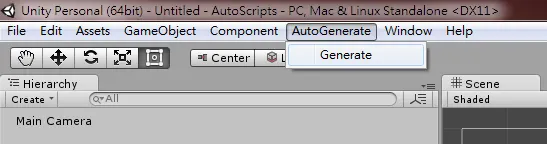
Run it from AutoGenerate -> Generate.
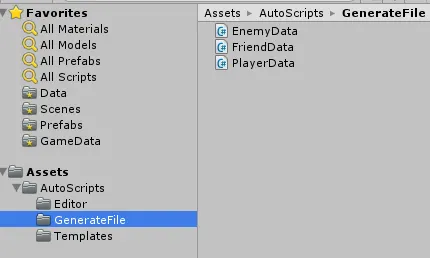
The generated scripts appear in the GenerateFile folder.
2016/07/27 Supplement
Unity also released an editor extension for script creation. It supports different script layouts, names, and implementation patterns.
Create Script Dialog
Required version: Unity 3.4.2 or later.

Postscript
Automatic generation is useful whenever the output is repetitive and structured: scripts, shaders, text files, reports, configuration files, and so on. Laziness is not the problem here; doing identical work by hand is.
Attribution
Please credit ARKAI Studio and link back to this article when quoting or reposting.